SSH (Secure Shell)
Advanced users often interact with HPC systems through the command-line interface (CLI). To connect to a Midway HPC cluster, use a terminal application such as Terminal (macOS/Linux), PowerShell (Windows), or another SSH client such as Termius or MobaXTerm.
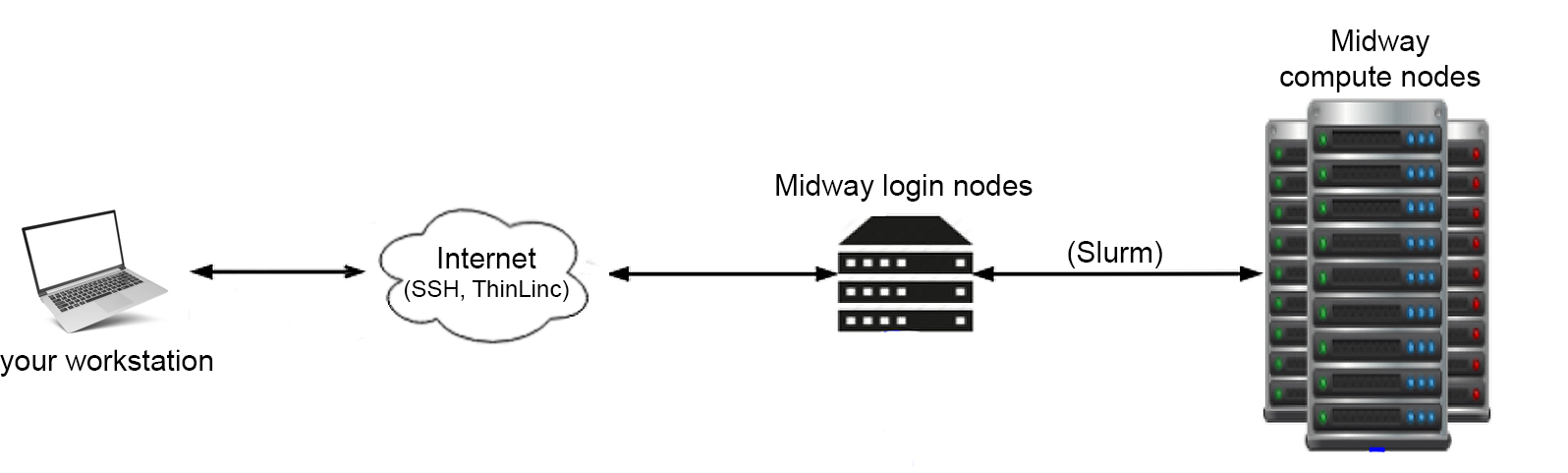
Login nodes
In the Terminal/PowerShell, run the following command to start the SSH session:
ssh <CNetID>@<hostname>
hostname is the address of the cluster's login node (see below). It is also possible to establish SSH connection with enabled X11 forwarding, so that the application running on the login node (remote) will forward GUI to your local display (client). For example, use -Y flag to enable X11 forwarding when connecting to Midway3:
ssh -Y <CNetID>@midway3.rcc.uchicago.edu
Note for macOS users
The program XQuartz is required to enable trusted X11 forwarding on a Mac.
Hostnames
| Cluster | Hostname | Cluster | Hostname |
|---|---|---|---|
| Midway2 | midway2.rcc.uchicago.edu |
DaLI | dali-login.rcc.uchicago.edu |
| Midway3 | midway3.rcc.uchicago.edu |
Beagle3 | beagle3.rcc.uchicago.edu |
| Midway3-AMD | midway3-amd.rcc.uchicago.edu |
MidwaySSD | ssd.rcc.uchicago.edu |
If this is your first time signing into a particular RCC cluster using your computer, the SSH client will ask, Are you sure you want to continue connecting?. Type yes and press the 'enter' button on your keyboard. Then, we get a prompt to enter our CNetID password. Note, as you type in your password, no character or other symbol will appear, but it is alright; type in your password and press enter on Windows or return on Apple keyboards.
Then, the Duo's multi-factor authentication (MFA) prompt asks a few questions.
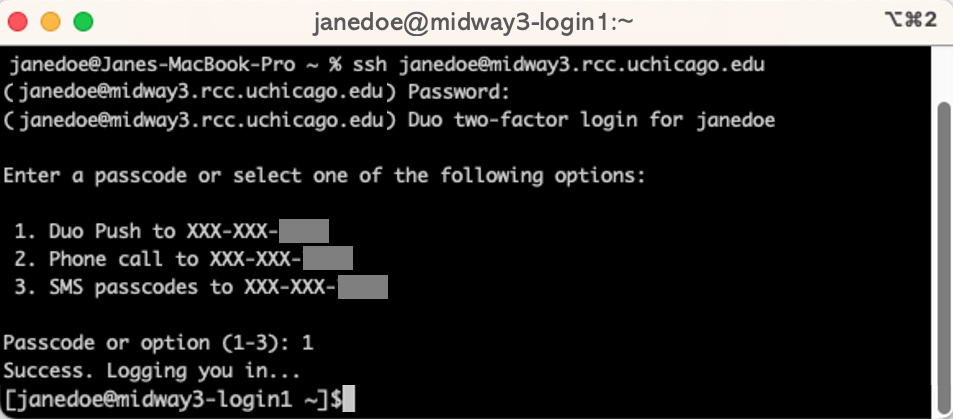
After Duo's multi-factor authentication (MFA), you land on one of the many RCC's login nodes. CNetID@clusterName-loginNodeNumber
Each cluster has multiple login nodes to distribute the workload across all users. You can land on one of the login nodes depending on their workload conditions at the time. You may choose to log in to a specific login node, e.g. midway2-login2.rcc.uchicago.edu, but it is typically discouraged. Login nodes are the "foyer" of the RCC's clusters. They are connected to the Internet and enable you to transfer data to and from the system.
Warning
The login nodes are NOT for computationally intensive work.
Note
In compliance with the University of Chicago security guidelines, 2FA is required with limited exceptions. If you believe you have a justifiable need for SSH key-based authentication (only PIs), please contact our helpdesk and describe your situation. Once your request is received, the RCC security team will review it, and we will follow up with you as soon as possible.
MobaXTerm (Windows only)
Launch the MobaXterm client and click on the Sessions icon at the upper left-hand corner of the client. Then, perform the following numbered steps, illustrated in the figure below, to establish a connection to RCC clusters.
- Click the SSH tab to expand the SSH login options.
- In the Remote host field enter the hostname.
- Select the Specify username button and input your CNetID
- Proceed to log in by clicking the OK button.
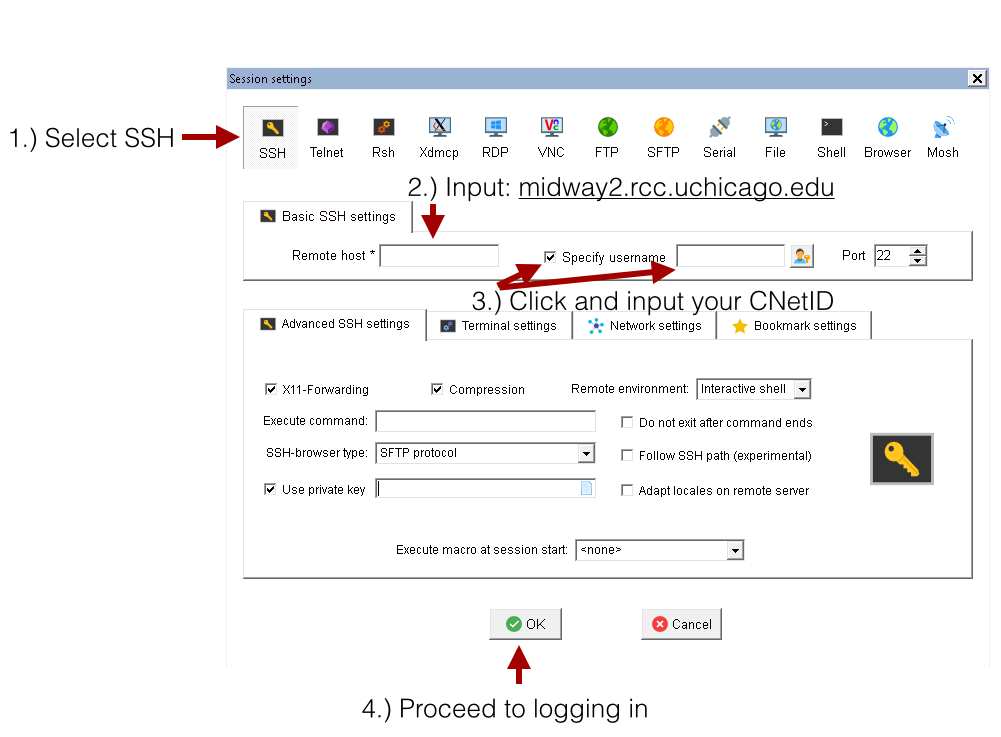
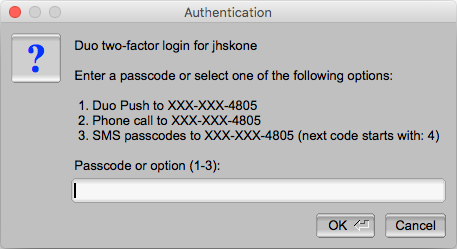
Provide your CNetID password when prompted for a password. A Duo two-factor authentication window will then pop up, requesting you select from the 2FA options to authenticate.
Compute nodes
Unlike login nodes, compute nodes are designed to perform computationally intensive work and have no Internet access. To perform calculations on the compute nodes, you need to submit batch or interactive jobs through the Slurm scheduler. Once your job starts, you will be able to connect to the corresponding compute node.
SSH Key Pairing
Members of the pi-lgrandi group (for the XENON experiment) can use SSH key pairing to connect to RCC servers.
To set up SSH key pairing:
1. Create your public key: Run the following command on your computer to generate a public key. (Replace <cnetid> with your CNetID.) Be sure you are not connected to an RCC server when you run the command; you want your public key associated with your local system, so RCC login nodes can use it to recognize your computer.
ssh-keygen -f ~/.ssh/<cnetid> -t rsa -b 4096
When you run this command in your shell (Mac terminal, Windows PowerShell, etc.), you will get a message specifying where your private and public keys have been saved. Note that the . in .ssh indicates a hidden folder, so you will need to show hidden items to see your public key <cnetid>.pub. You can do this from your shell (run ls -la) or your file explorer (press command + shift + . on Mac or select View > Hidden items on Windows).
2. Share your public key: Now that you have generated your public key, share it with the RCC so we can add it to our login nodes. Send <a href=mailto:'help@rcc.uchicago.edu'>help@rcc.uchicago.edu an email with the following information:
- Your CNetID
- Your public key (attach your
<cnet>.pubfile to the email OR copy/paste the contents of the file into the body of the email) - Which RCC cluster you would like to connect to with SSH key pairing: Midway2, Midway3, or DaLI
An RCC staff member will add your public key to the appropriate login nodes.
FAQ
What login shells are supported and how do I change my default shell?
You can check the list of supported shells by:
cat /etc/shells
chsh -s /path/to/shell
It may take up to 30 minutes for that change to take effect.
Is remote access with Mosh supported? "
Yes. To use Mosh, first log in to Midway via SSH, and add the command module load mosh to your ~/.bashrc (or ~/.zshenv if you use zsh). Then, you can log in by entering the following command in a terminal window:
mosh <CNetID>@midway2.rcc.uchicago.edu
mosh <CNetID>@midway3.rcc.uchicago.edu
Why am I getting “ssh_exchange_identification: read: Connection reset by peer” when I try to log in via SSH? "
You can get this error if you incorrectly enter your password too many times. This is a security measure that is in place to limit the ability for malicious users to use brute force SSH attacks against our systems.
After 3 failed password entry attempts, an IP address will be blocked for 4 hours.
While you wait for the block to be lifted, you should still be able to access the RCC system using ThinLinc.
Why am I getting prompted for YubiKey when I try to log in via SSH? "
There are few reasons to get that error message. Please enroll in two factor authentication if you have not done already by visiting https://cnet.uchicago.edu/2FA/. Please make sure you run:
ssh -Y CNetID@midway2.rcc.uchicago.edu
ssh -Y CNetID@midway3.rcc.uchicago.edu